3 Ways Protect Your USB Pen Drive From Virus

Do you use a Pen-Drive for transferring data across different systems in your office/network, then there is a high possibility of virus infections for transferring across with the pen-drive as a medium.Here are collection of freeware tools that you could as your first line of defense before using your pen drive on other systems. 
1.USB Write Protector  –This freeware application prevents write access to a USB drives. This will protect USB drives from viruses, malwares, spywares etc.Using this tool you can just copy data from your pendrive to the system but not copy data into the pen drive from the client system.Its only 190 KB and works with XP with SP2.
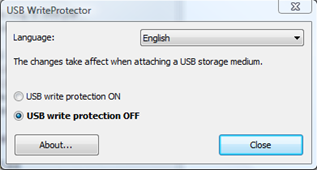
usb-write-protector
     HomePage  ||   Download


2.Portable Antivirus Solutions
ClamWim Portable — ClamWin Portable is the portable version of the open source Free Antivirus program.
  • clamwin It is a standalone application, which means incase you want to copy a file to your pen drive, you will have to manually scan the file for infection using the tool.
  • Update the virus signature from the regularly updated Virus Database directly from the USB.
  • It also detects spyware.
  • It takes about 25 MB after installation on to the USB drive.Homepage  ||  Download

How to Secure Your USB Drive And Prevent It From Spreading Virus

USB flash drive is useful because it provides a convenient way for you to bring your data around. However, due to its convenience, it is also a target for viruses and other malware to spread across computers and networks.
n this article, we will discuss the solutions to tackle two situations:
  • prevent your USB drive from getting infected.
  • protect your system from USB drive virus attack
There are plenty of solution to safeguard the USB drive, but most of them are computer specific. The method described here should work across different Windows computers.
The following method uses the security permission of NTFS file format to secure your USB drive.
Note: The default filesystem for most USB drive is Fat32, which is good if you are using the it on different platforms such as Linux, Mac OS and Windows. If you are using it primarily on Windows, you can safely convert the file system to NTFS.
Note: You should not convert the USB drive to NTFS if it is less than 2GB in size as the performance of the USB drive may get affected.
To convert a USB drive to NTFS file system, follow the steps below:
1. Insert the USB drive and then go to Device Manager.
2. Under Disk Drives, right click the USB drive name and select “Properties”.